
Anime Cardverse Inventory: How to Lock and Sell Powers and Weapons
Clear space for your next summon without selling the Powers and Weapons you want to keep.
Open the inventory named in the warning: Powers or Items → Weapons. Lock the copies you want to keep, select extras in Sell mode, and confirm the sale. A fixed ten-pull needs ten free slots in the matching inventory.
Separate Power and Weapon Storage
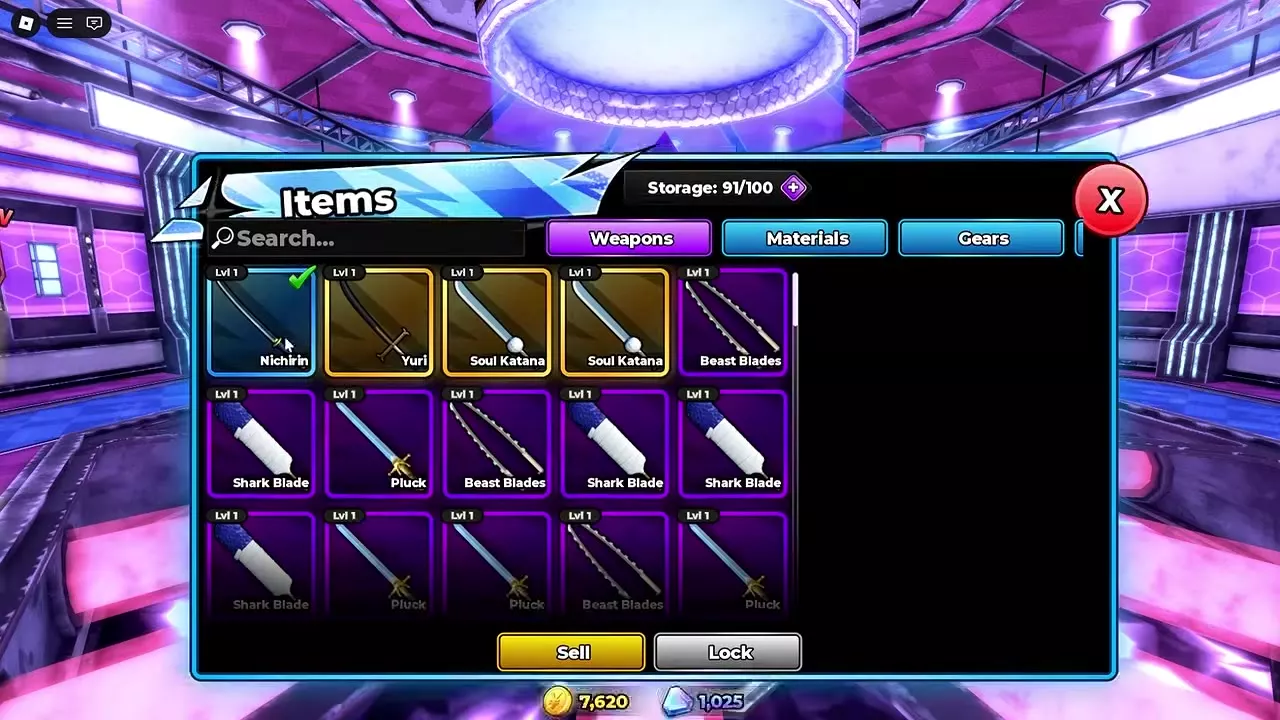
Powers and Weapons use separate storage counters. Open Powers to check Power storage, or Items → Weapons to check Weapon storage. The counter reads used slots over total slots; subtract the first number from the second to find your free space.
A fixed ten-pull needs ten free slots in the inventory for that banner. At 91/100, you have nine slots free, so the ten-pull is blocked even though the inventory is not completely full. At 100/130, you have 30 free slots. Space in Powers does not make room for a Weapon summon, or vice versa.
Find and Lock the Copies You Need
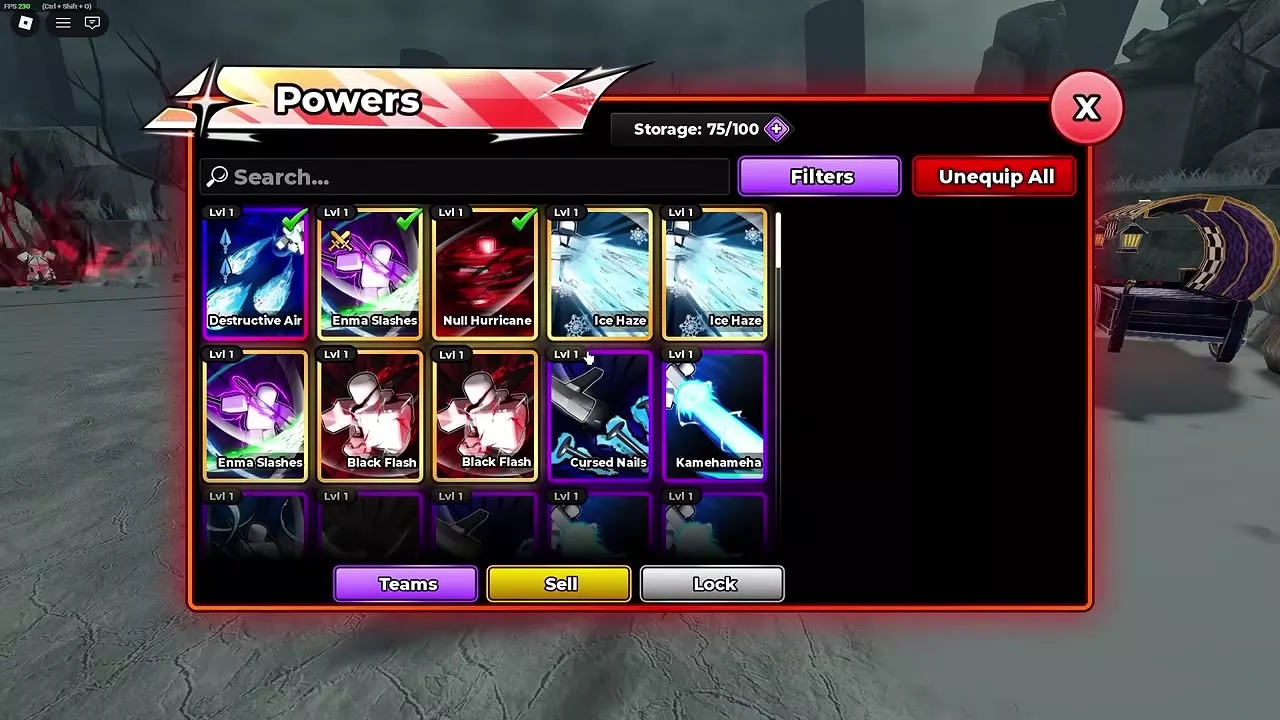
Open Powers or Items → Weapons, then use Search to find a card by name. Hover over copies to compare their individual stats. A green check marks an equipped card.
In Powers, Filters narrows the list by Rarity or Element. Choose the options you want and press Apply Filter; use Reset Filter to clear them. Filtering changes what you see, while Sell mode marks cards for sale.
Choose Lock to enter Locking mode, select the individual copies you want to protect, and look for the padlock badge. Lock useful Shiny cards, equipped items and duplicates you plan to use for Ascension. Before deciding how many spares to sell, select the copy you intend to keep and check its next-star requirements at Wish. The Ascension guide explains the duplicate requirements.
Sell Individually or by Rarity
- In the inventory you want to clear, choose Sell.
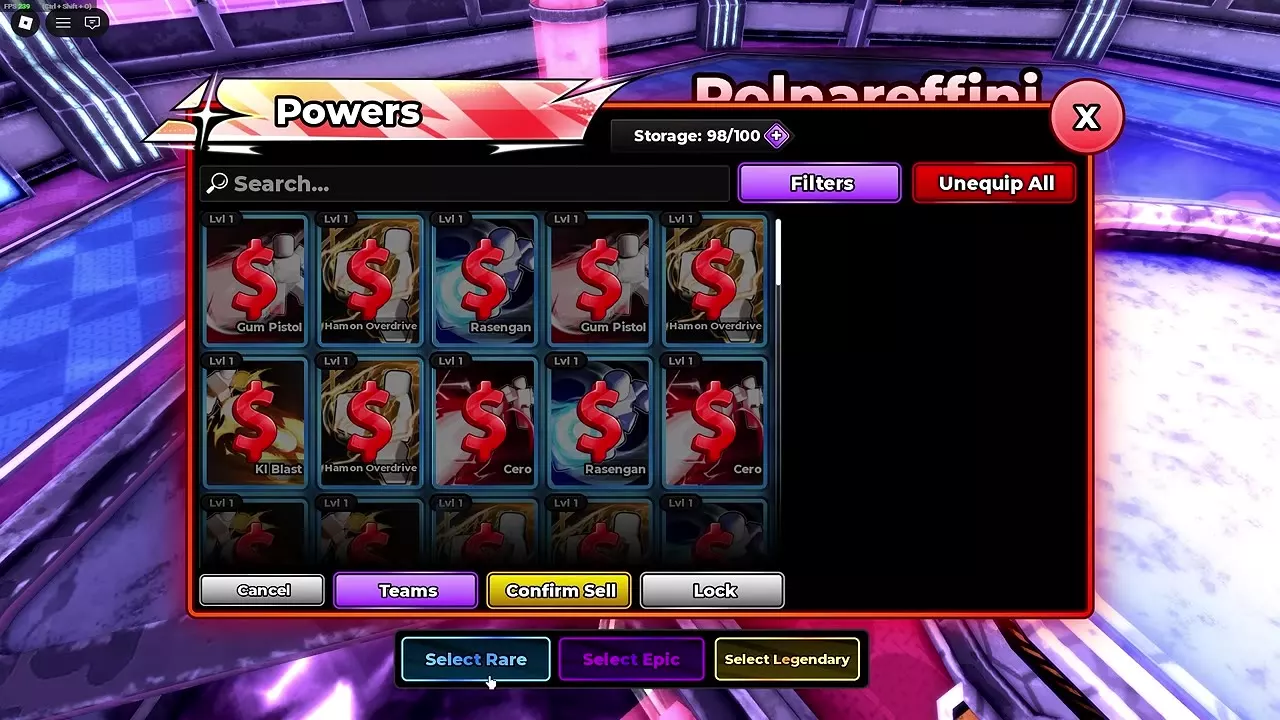
- Select individual cards, or use Select Rare, Select Epic, and Select Legendary to mark cards by rarity.
- Review the red currency symbols on the marked cards. Deselect any copy you want to keep.
- Choose Confirm Sell to complete the sale, or Cancel to leave it. Check the storage counter and reward notification afterward.
If you try to select an equipped Power, the game displays “This power is equipped.” To sell that copy, open its details and choose Unequip, then select it in Sell mode.
A Rare-only Power sale of 35 cards reduced storage from 100/100 to 65/100 and awarded 350 Coins. A separate Power sale reduced storage from 57/100 to 3/100 and awarded 1,020 Coins and 11 Souls. The space freed is in the inventory where the cards were sold.
Summon Again After Making Space
Read the warning to identify the blocked inventory. If it says there are too few slots left for the batch, clear enough space in that inventory or choose a smaller affordable batch that fits. If the inventory is full, sell extras there before trying again.
Check the displayed Gem cost separately: a greyed-out summon button can also mean your balance is too low. Summons, Banner Rates, and Pity covers batch settings and costs.
Release Patch 1 fixed a bug that deleted a claimed Power or Weapon when its matching inventory was full.