
Anime Cardverse Controls and Auto Combat Settings
Set up your Anime Cardverse hotbar and weapon, then choose which attacks to automate and which Powers to cast yourself.
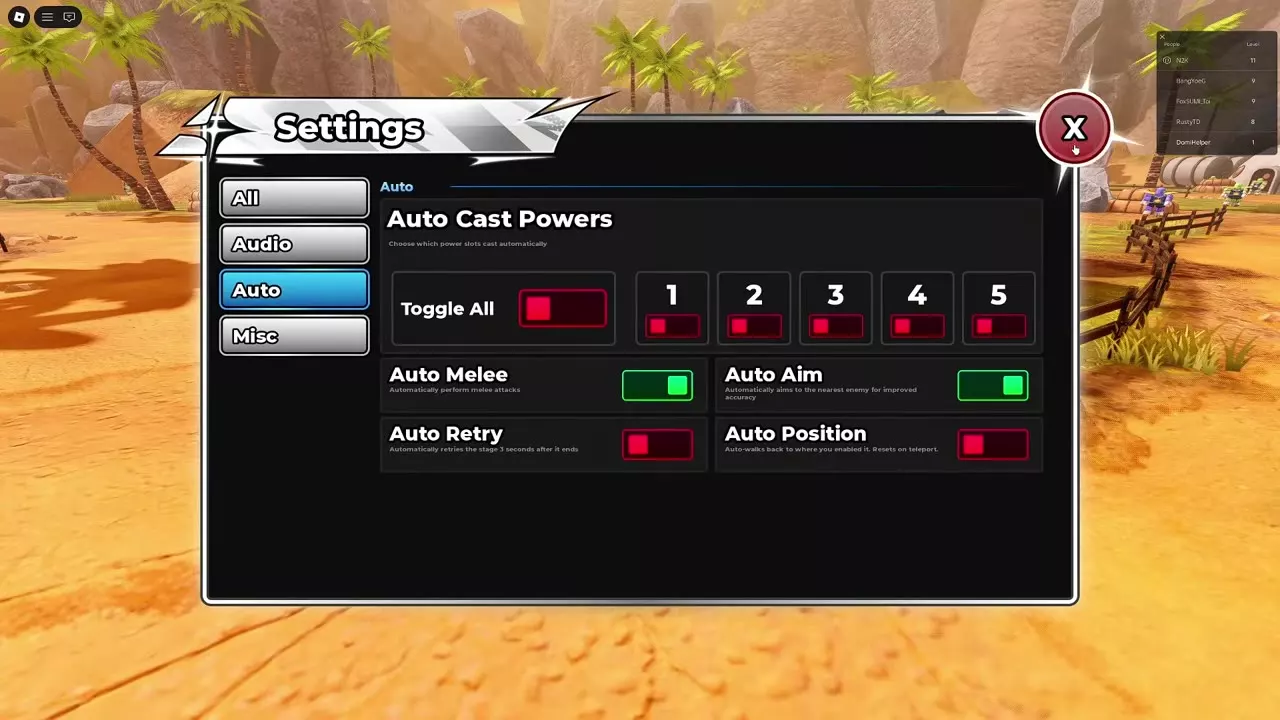
On PC, press T, select a Power, and choose Equip to put it in an unlocked hotbar slot. Wait for the current Power’s cooldown before replacing it. Press G and open Weapons to equip a weapon. Press J and select Auto to set Auto Cast by slot and toggle Auto Melee, Auto Aim, Auto Position, and Mission Auto Retry separately.
Hotbar, Items, and Settings
| PC key | Opens |
|---|---|
| T | Powers |
| G | Items |
| J | Settings |
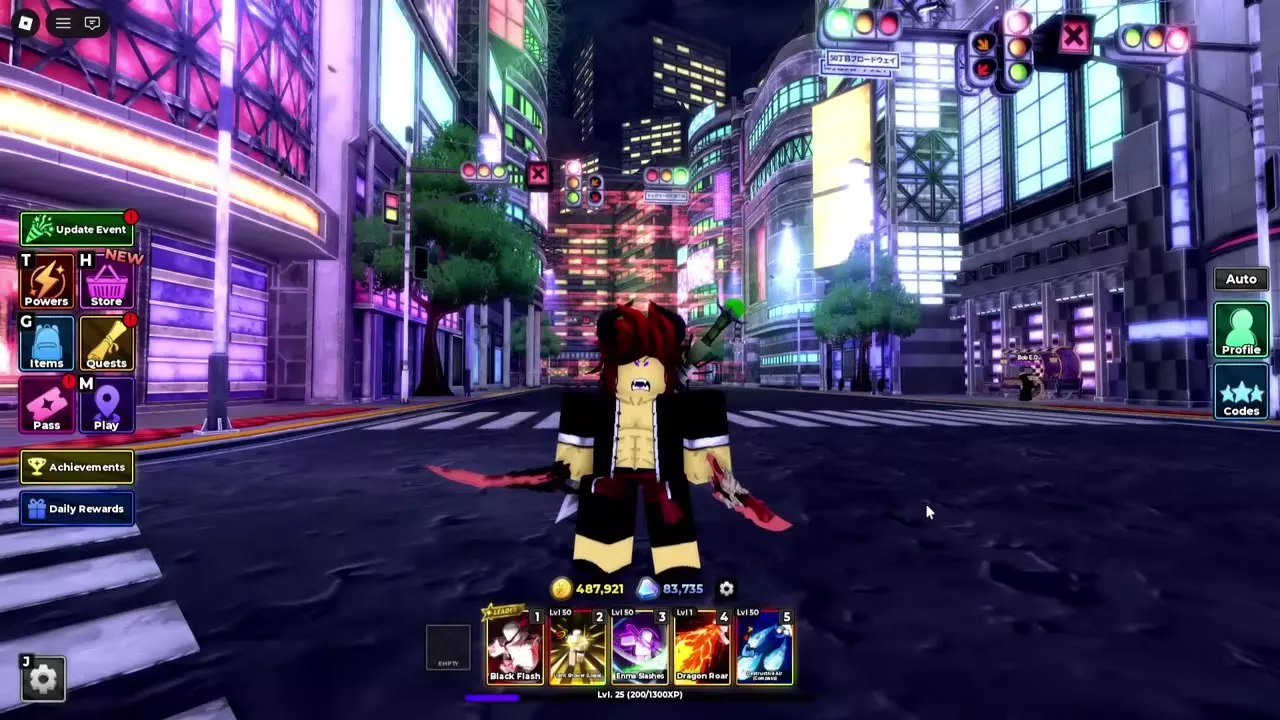
The Powers and Items buttons are on the left side of the HUD, and the Settings gear is at the bottom left. In a fight, use the numbered hotbar slots to cast equipped Powers manually. Get within melee range to land basic attacks with your equipped weapon between casts.
You start with two Power slots. Slots 3, 4, and 5 unlock at player levels 3, 10, and 20, respectively. Player levels and milestone rewards
Equip, Replace, and Reorder Powers
Equip or replace a Power
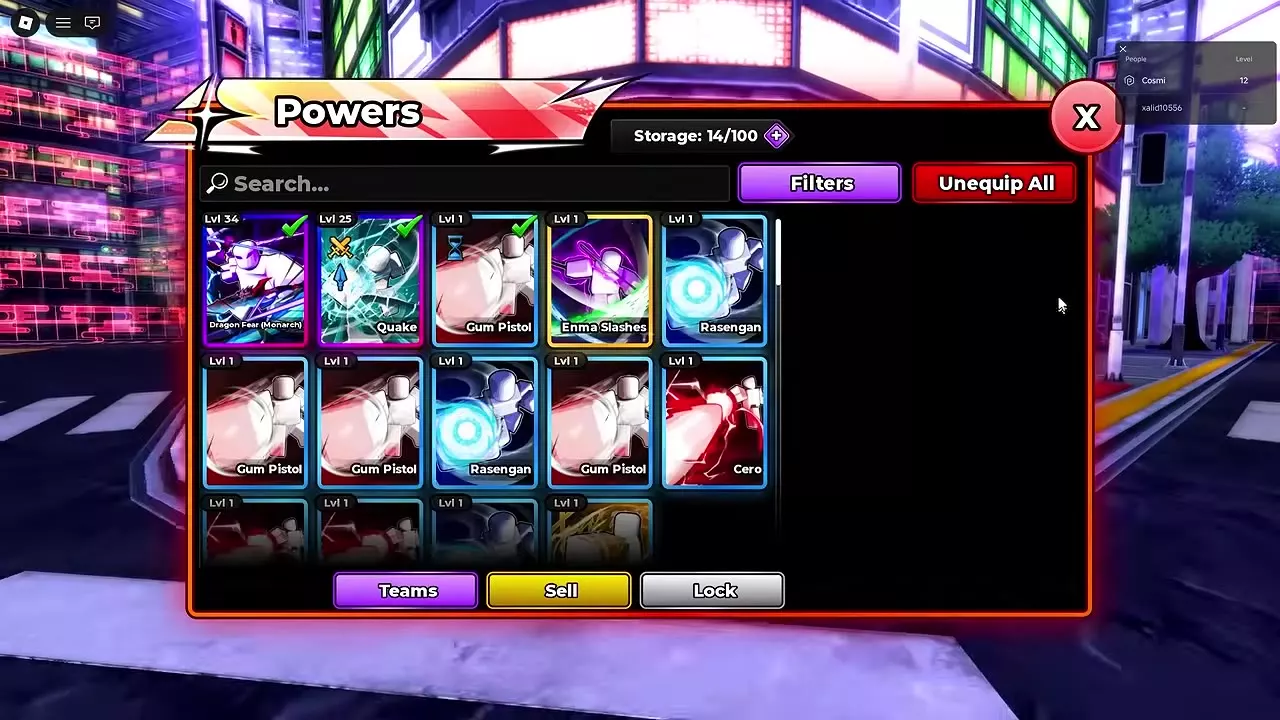
- Open Powers, select a card you own, and click Equip on its detail panel.
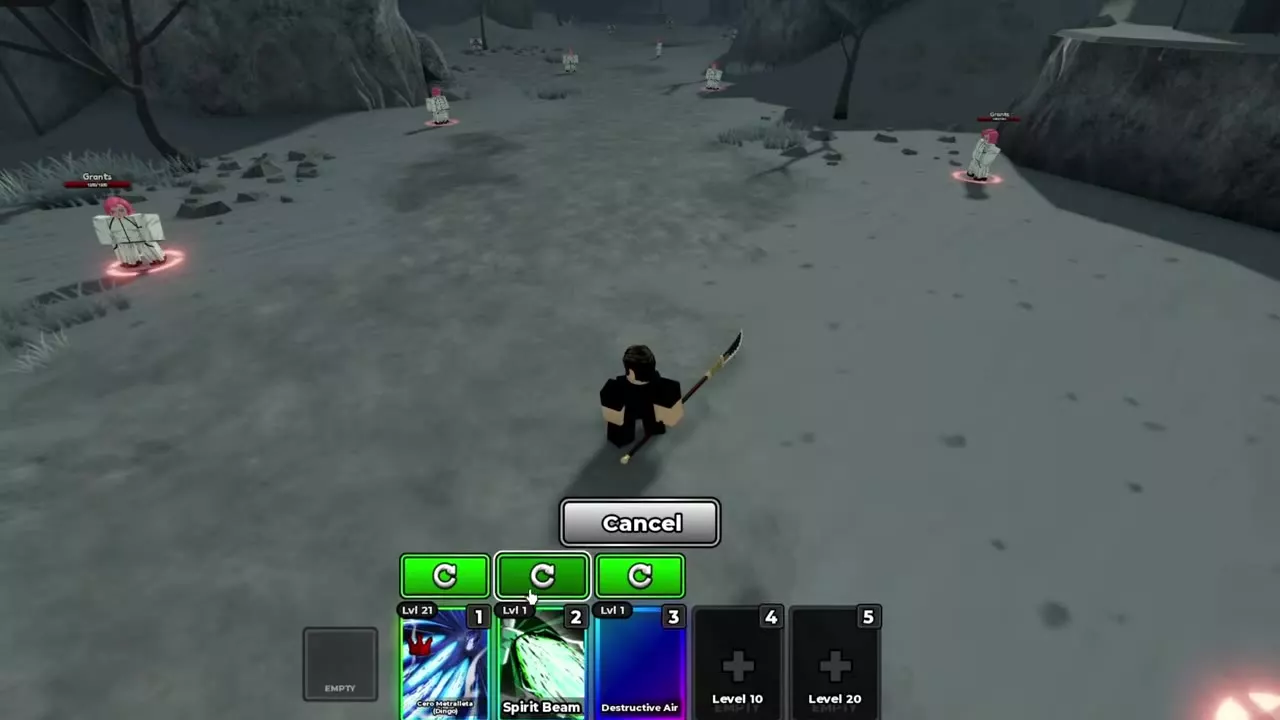
- If the slot picker opens, click the button above the unlocked slot you want to fill or replace. Click Cancel to back out without changing the lineup.
- Check that the card has a green checkmark in Powers and shows up in the intended slot on the hotbar.
To clear one slot, select its equipped card and click Unequip. To rebuild the full lineup, use Unequip All and equip your cards again in the order you want. Put the card you want marked Leader in slot 1. The Teams button is at the bottom of the Powers menu. For help choosing what to equip for a fight, see combat builds.
Equip or swap a weapon
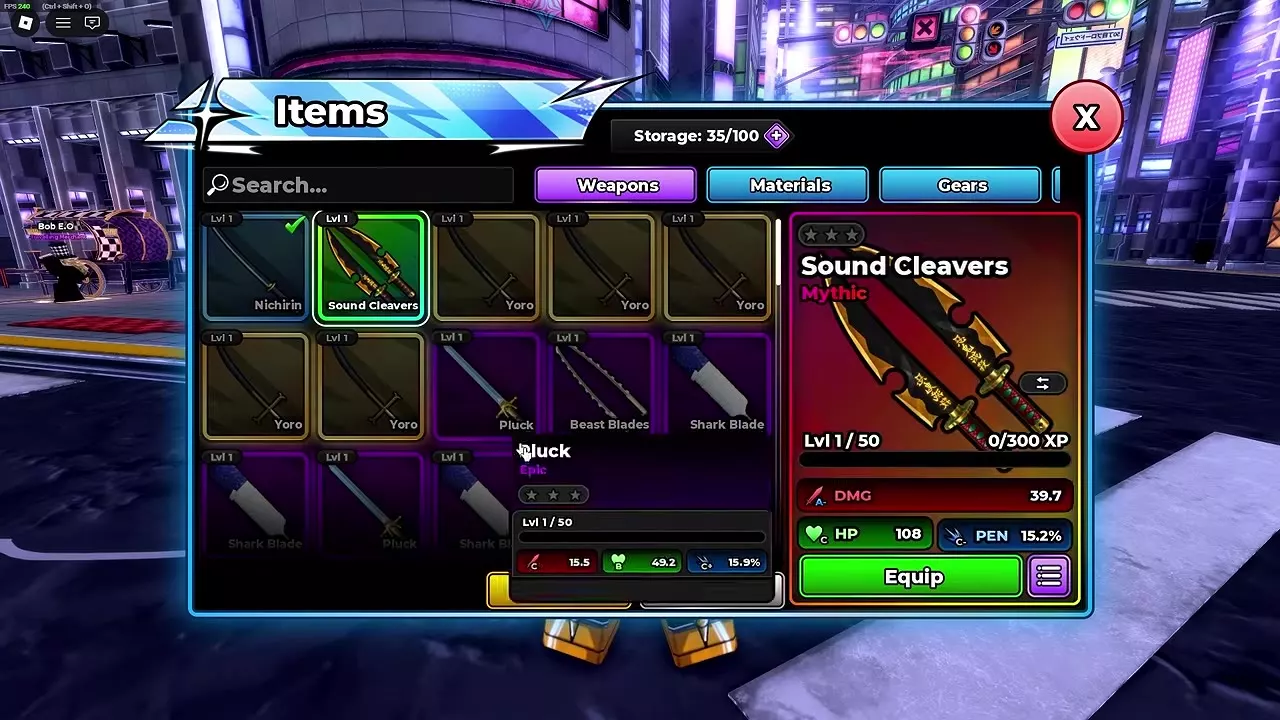
- Open Items → Weapons and select a weapon you own. Its detail panel shows level, XP, damage (DMG), health (HP), and penetration (PEN). Open the card’s detail menu and choose Passives to read its effects.
- Click Equip. The new weapon takes the active slot and gains a green checkmark. Open its card again to find Unequip. The previous weapon’s button returns to Equip.
An equipped weapon adds basic attack damage and player health. You can keep using melee attacks while a Power’s ground effect is active.
Auto Cast, Auto Melee, and Auto Aim
Open Settings → Auto. A green switch is on, and a red switch is off.
- Auto Cast Powers casts the Powers equipped in the numbered slots you enable. Use Toggle All to switch slots 1–5 together. Move into combat range and watch for countdowns on the hotbar as the Powers fire.
- Auto Melee performs basic attacks automatically. Stay within melee range for those attacks to connect.
- Auto Aim aims at the nearest enemy. Turn it off when you want to aim at a different target yourself.
Keep Auto Cast off for any Power you need to time yourself, such as an opener you want to save until enemies group up. Leave your other slots enabled for routine attacks. To stop all automatic casting, use Toggle All to turn the five slot switches off. Turn off Auto Melee and Auto Aim with their own switches if you want full manual control.
Auto Position and Mission Auto Retry
Return to a fighting spot
Stand where you want to fight, then turn on Settings → Auto → Auto Position. A pillar of light marks the spot. If you move away, your character walks back to the beam. Use it to return to the same spot between attacks in a fight such as Nemu’s Village Act 1 on Hard. Teleporting clears the saved position, so set it again after arriving wherever you want to hold your ground.
Replay the current act
Enter the Mission act you want to repeat and turn on Settings → Auto → Auto Retry during the run. It restarts the current act 3 seconds after the stage ends. The retry switch works independently of the attack and positioning switches.
For a one-time replay, leave Auto Retry off and choose Retry on the Victory screen. If you want to advance with Next or go back to the lobby with Return, turn off Auto Retry before the act ends. Mission rooms and Victory controls
Profile, Interface, and Private Servers
View a player’s loadout and totals
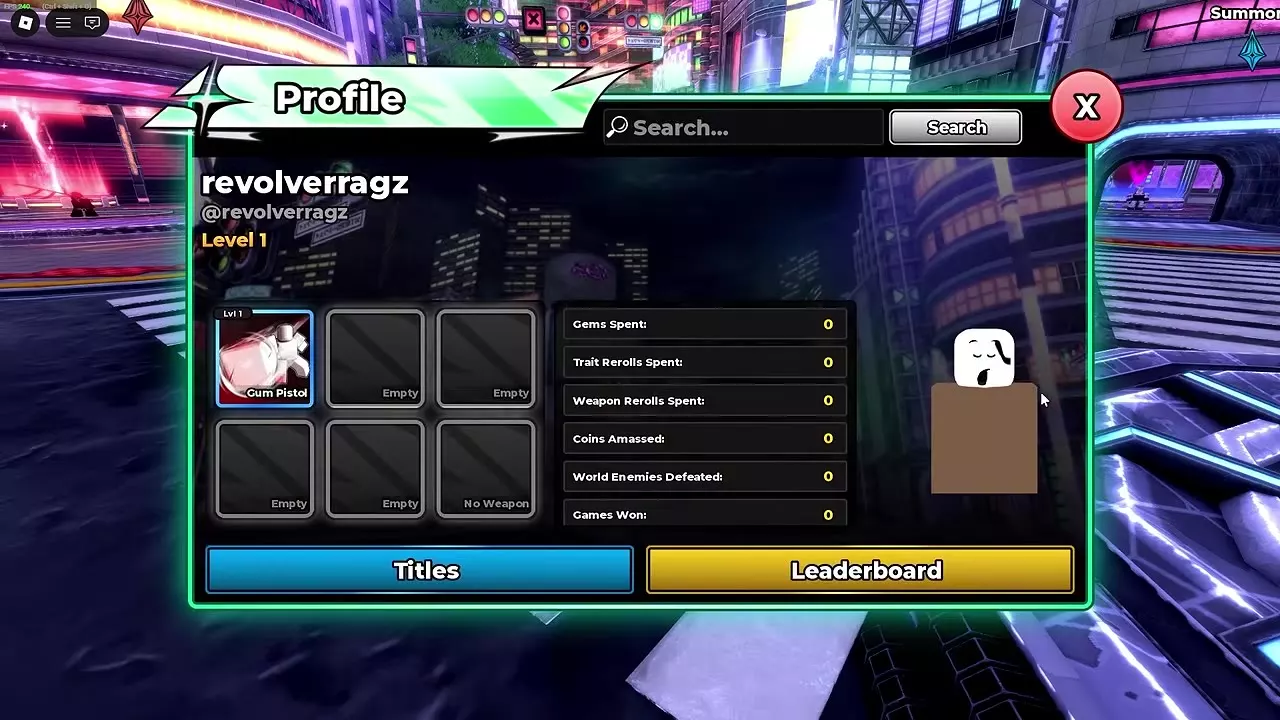
Open Profile on the right side of the HUD to see your player level, equipped Powers, weapon, and account totals. To inspect another player, enter their name in the search box and click Search. The panel tracks Gems Spent, Trait Rerolls Spent, Weapon Rerolls Spent, Coins Amassed, World Enemies Defeated, and Games Won. Open Titles or Leaderboard from the buttons at the bottom.
Adjust sound, HUD, and movement
- In Settings → Audio, use the Music and SFX sliders to adjust the soundtrack and sound effects separately.
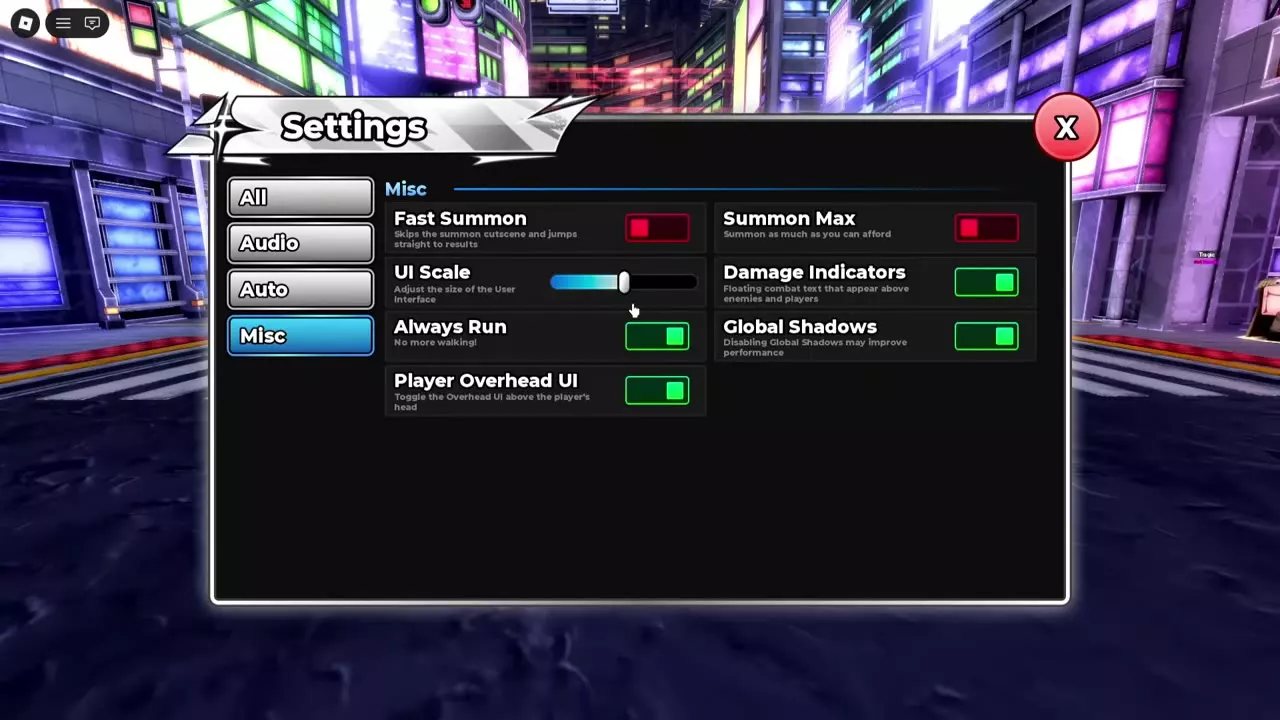
- In Settings → Misc, lower UI Scale if the HUD takes up too much of the screen. Use Damage Indicators to show or hide floating combat numbers and Player Overhead UI to control the display above players. Turn off Global Shadows to reduce rendering load. Turn on Always Run to keep running without pressing the run control each time.
- Fast Summon in Misc skips the animation and opens the results directly. Summon Max sets the batch to as many summons as you can afford. Summon sizes, banner rates, and pity
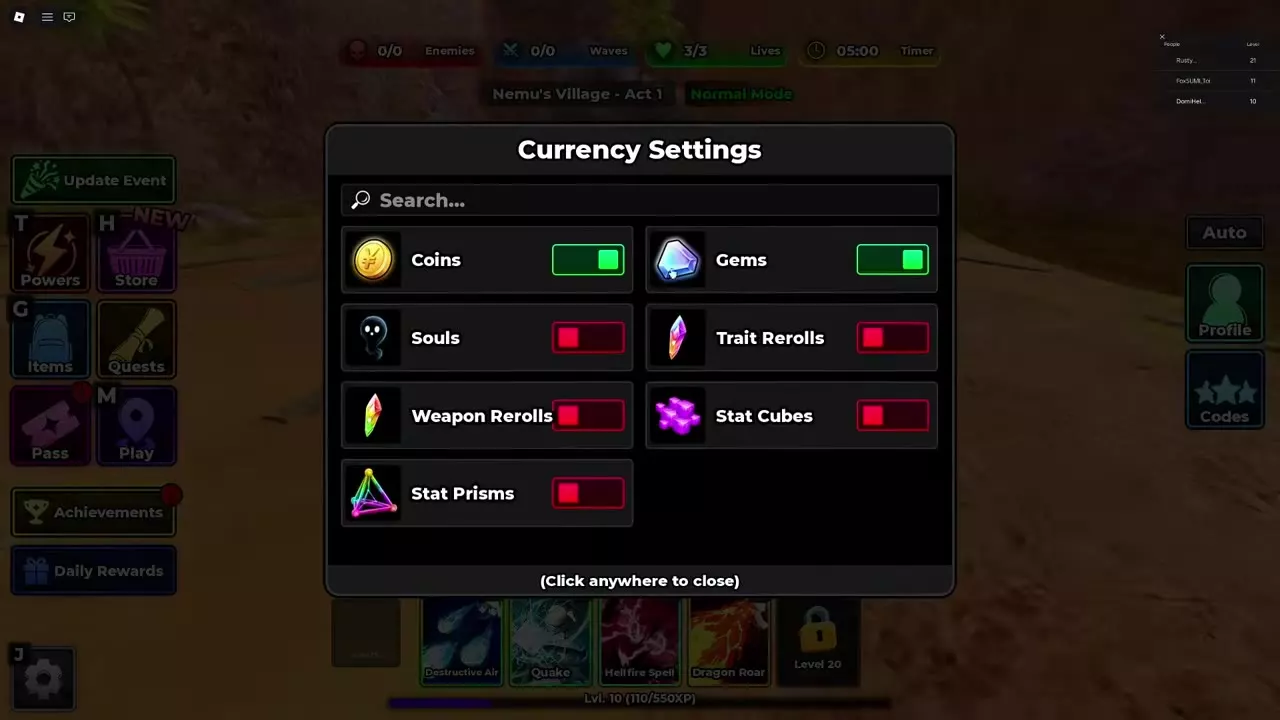
- Open Currency Settings with the gear beside the currency counters above the hotbar. Search for a resource or use its switch to show or hide its counter. Options include Coins, Gems, Souls, Trait Rerolls, Weapon Rerolls, Stat Cubes, and Stat Prisms.
Anime Cardverse supports mobile, tablet, PC, and console. Release Patch 1 added mobile shift-lock and tooltip support, rearranged the touch buttons, and added tooltips for attack types.
Private servers
Anime Cardverse private servers on Roblox are free and cost 0 Robux.
Cooldown and Slot Restrictions
- Cooldown countdown on a card. The game blocks replacement while the Power already in that slot is on cooldown. Wait for its countdown to finish, then try Equip and select the slot again. If Auto Cast keeps firing the Power, switch off auto-casting for that slot first.
- Padlock and level requirement. The slot is locked. Reach the player level printed on the hotbar before assigning a Power to it.
- Empty slot. An unlocked slot can stay empty until you equip a card. Auto Cast needs a Power in the slot before it has anything to cast.